Cara setup account email pada Microsoft Outlook 2010:
1. Buka Microsoft Outlook 2010 Anda.
2. Dari menu atas sebelah kiri klik FILE. Di Informasi Akun, klik "Add Account".
3. tekan "Manual setup or additional server types”

4. pilih POP or IMAP.

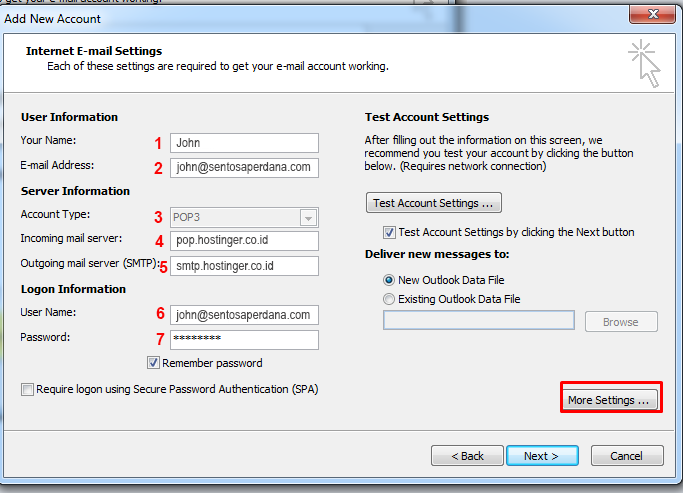
5. Masukkan nama dan alamat email lengkap pada bagian Informasi User.
6. Pilih Account Type. Anda dapat memilih POP3 atau IMAP seperti support untuk kedua protokol email.
7. Masukkan mail.domain.com untuk server inbox dan sent email (SMTP) mail.domain.com
8. Kemudian masukan alamat email lengkap dan password pada bagian informasi Logon dan checklist remember password
9. Kemudian klik more setting.
10. Masuk ke "Outgoing server", untuk mengecek klik check on My outgoing server (SMTP) memerlukan otorisasi, karena baru-baru ini kami menerapkan kebijakan server untuk memungkinkan pengiriman email dari client.

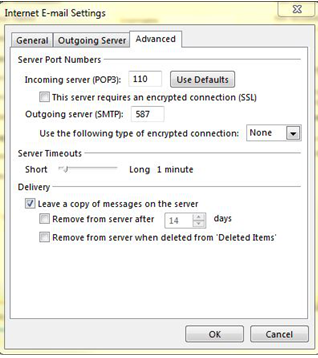
11. Klik Tab "Advanced" dan ubah Outgoing server (SMTP) port 25-587.
Konfigurasi untuk IMAP
Incoming Server (IMAP) : 993 (SSL) atau 143 (none SSL)
Outgoing Server (SMTP) : 465 (SSL) atau 25/2525 (none SSL)
Konfigurasi untuk POP3
Incoming Server (IMAP) : 993 (SSL) atau 110 (none SSL)
Outgoing Server (SMTP) : 465 (SSL) atau 25/2525 (none SSL)
12. checklist kotak "Leave a copy of messages on the server" jika Anda ingin server menyimpan email Anda sebagai cadangan. Klik tombol OK.
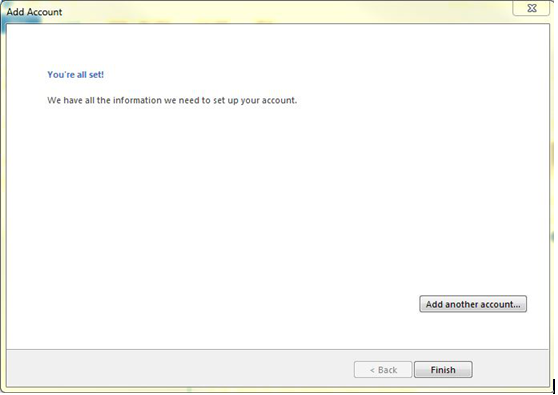
13. Klik Finish, akun email Anda di Microsoft Outlook 2010 siap untuk digunakan.